Setup reference
Find the task you need, follow the screenshot, then expand the extra detail only when you need it. New to Unapp? Start with the six-step visual walkthrough.
Choose sections and preview
In Appearance → Starter Sites, choose a starter, then open Choose homepage sections (optional) in Name and look. Keep the sections you need; the introduction and closing action stay included.
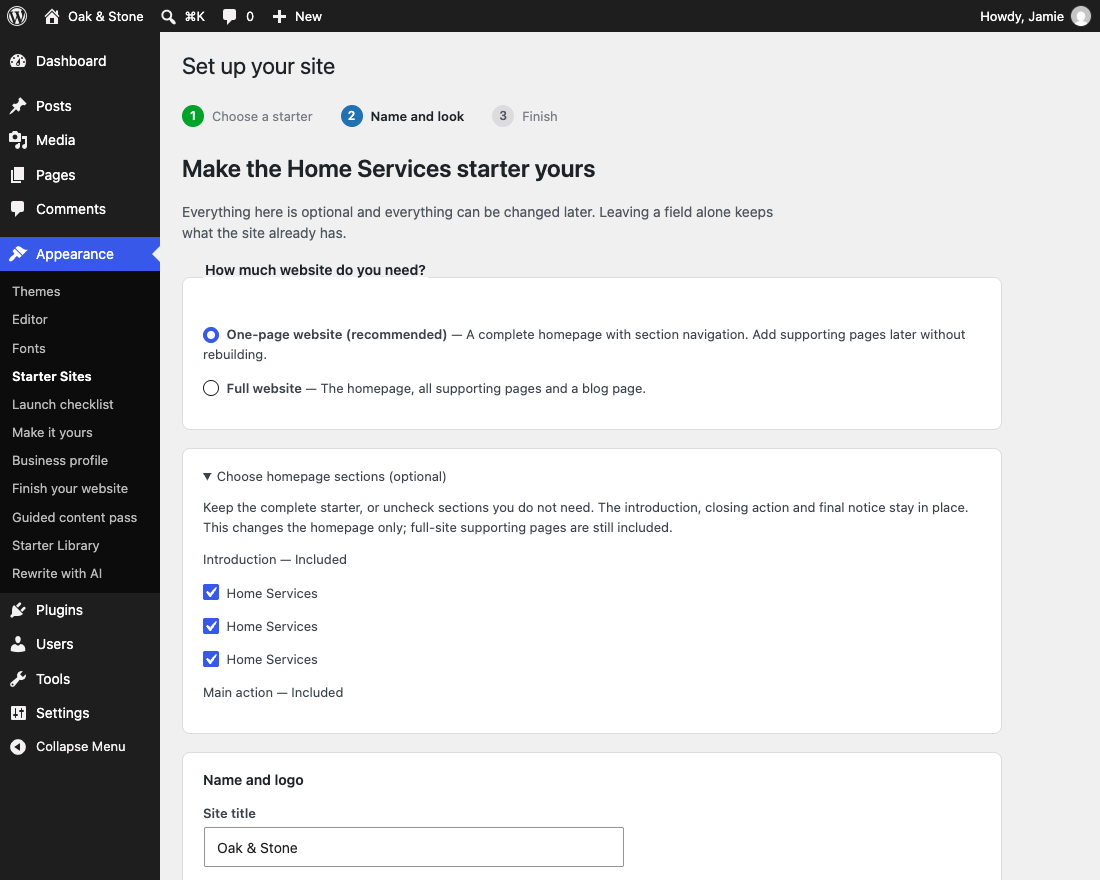
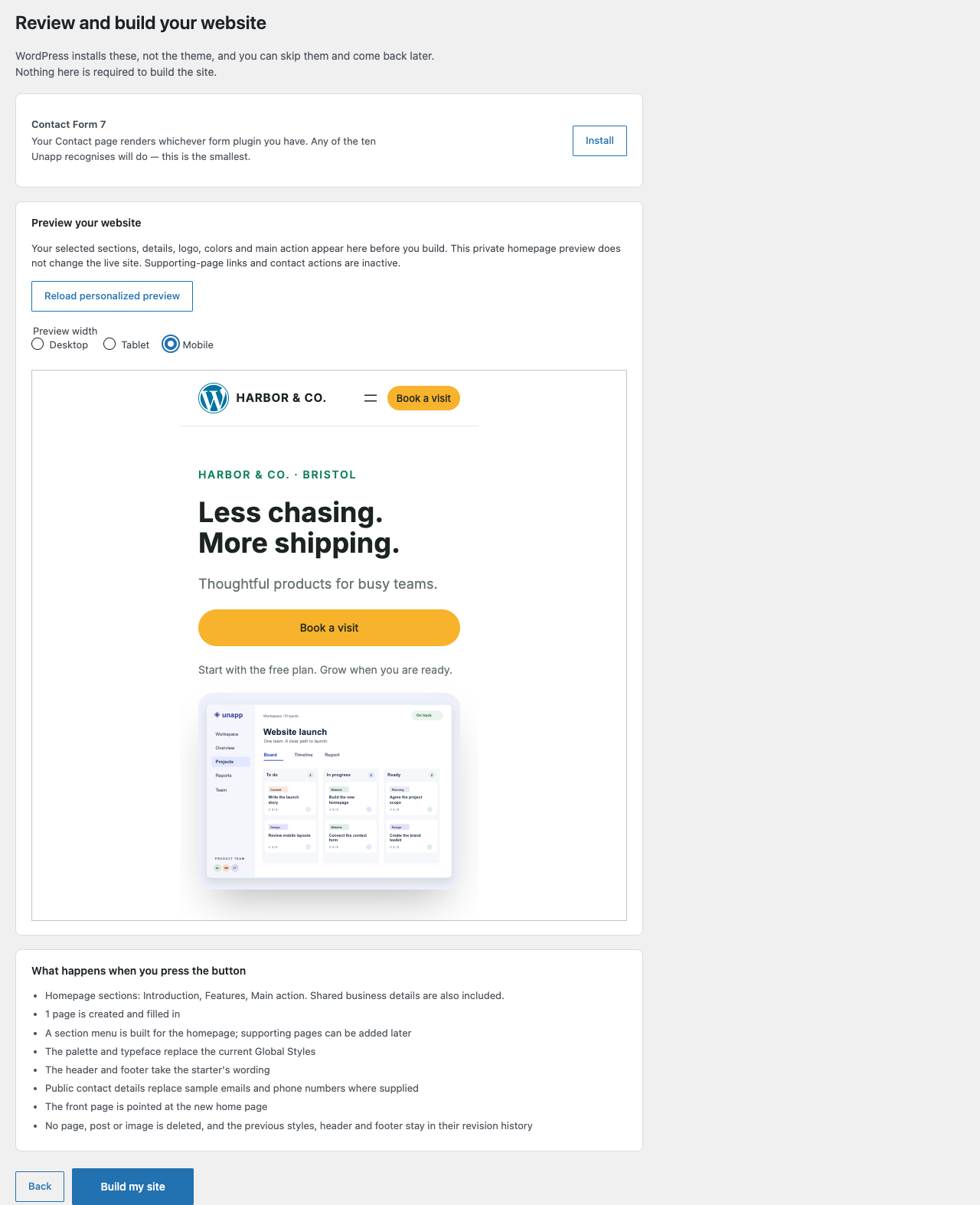
Choose Continue to see your selected sections, name, details, colors and main action in the private preview. Check Desktop, Tablet and Mobile. Back changes your choices; Build my site applies them and publishes the starter.
How selection and preview behave
In Name and look, expand Choose homepage sections (optional). Everything starts selected. Uncheck sections such as pricing, testimonials or team profiles when you do not need them. The introduction, closing action and any final notice remain included. Full-site supporting pages are still created.
One-page navigation uses the sections that remain. Links to omitted sections are removed; main buttons whose destinations were omitted become Contact us and point to the included business details. The final setup screen lists your chosen sections. This selection applies to the new homepage and does not remove content from an existing website. Add sections later using WordPress's pattern inserter.
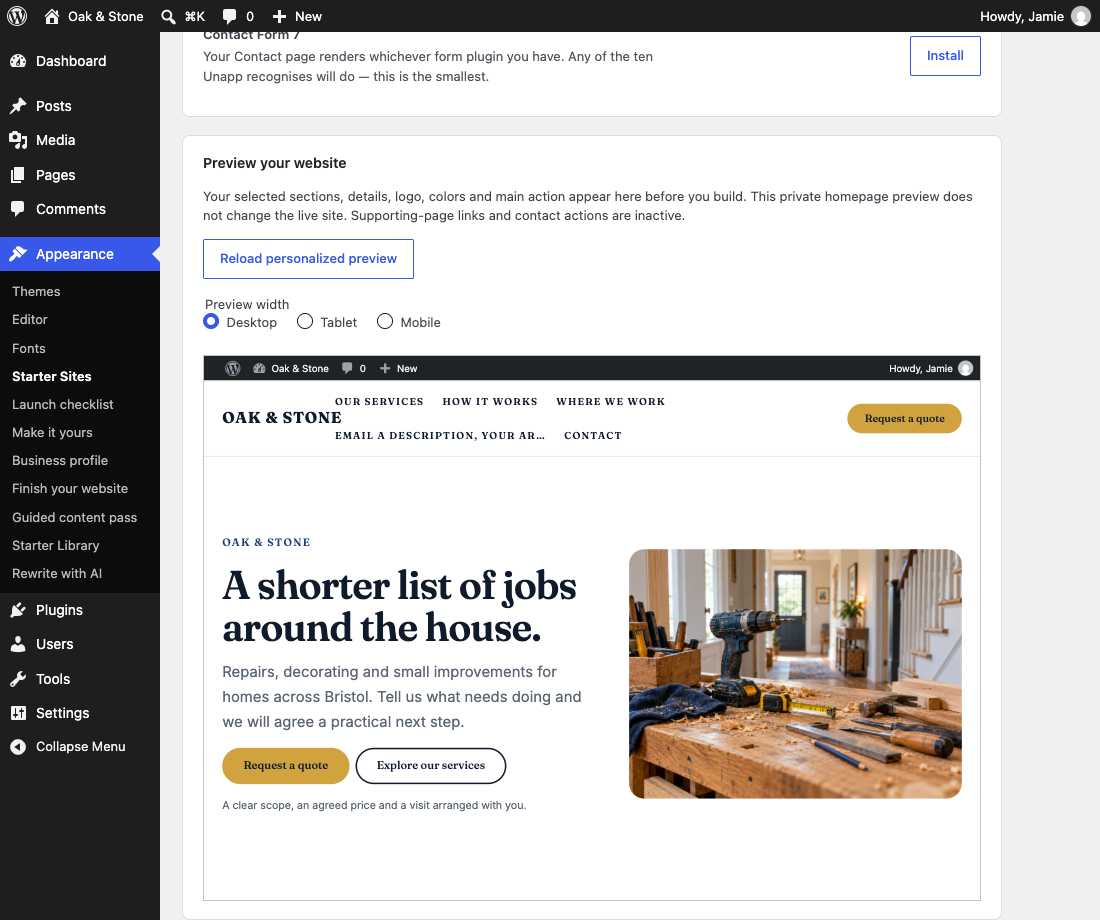
On Review and build your website, the private homepage preview loads your selected sections, business details, logo, palette, typeface and main action. Choose the main action under its optional controls in Name and look. Call and email use your public details; bookings need a full URL. The default quote action points to the new homepage's business details.
Switch between desktop, tablet and mobile to check the actual layout at each width. Use Back to adjust choices, then return to see the updated preview. Reload personalized preview also works without JavaScript; device scaling requires JavaScript.
Previewing does not create pages or change branding, menus, styles or Reading settings. It uses a permission-checked, nonce-protected POST rather than a public preview URL. This is a homepage preview: supporting-page links, external actions, purchase controls and submissions are inactive. Shop still requires WooCommerce. Build my site applies the same choices and publishes the starter as described in the setup summary. See the personalized preview.
Business details and service cards
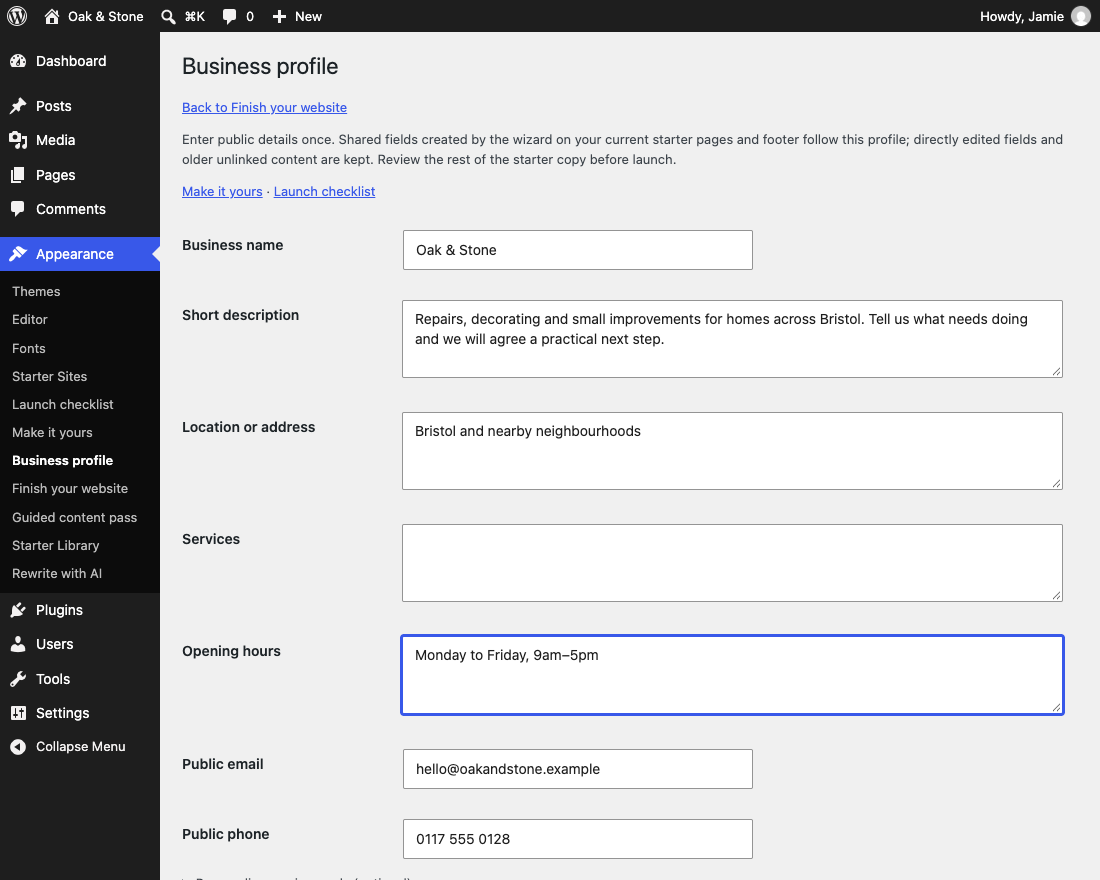
Open Appearance → Business profile to update your public description, contact details, location, services and hours together. Generated fields that you have not edited directly update across the current starter.
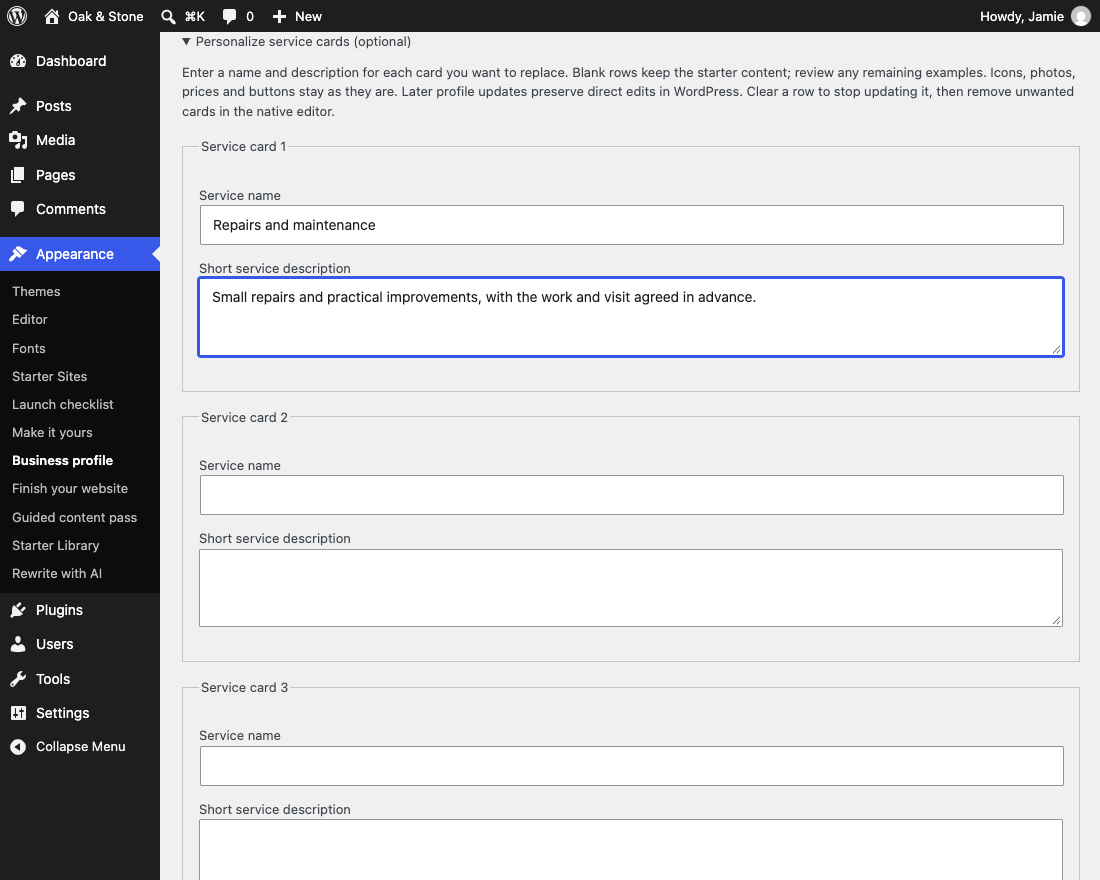
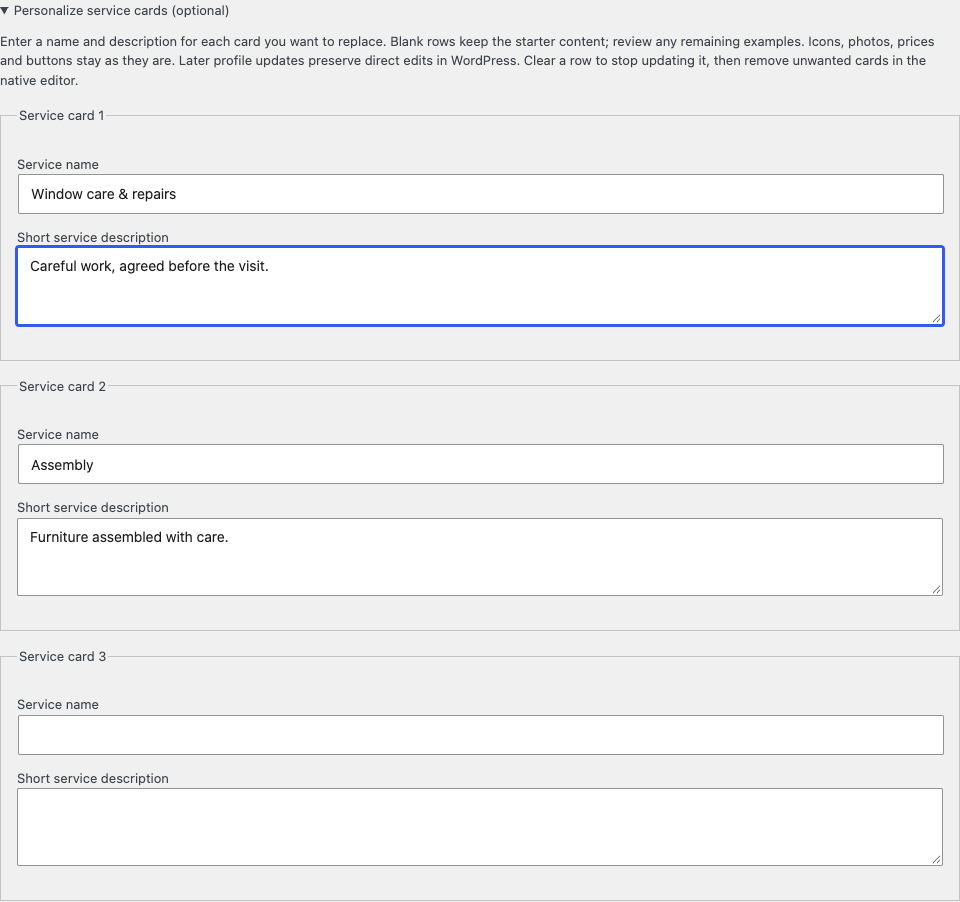
For compatible starters, expand Personalize service cards (optional). Enter each service name and a short description. Blank rows keep the starter copy; icons, photos, prices and buttons remain editable in WordPress.
Shared updates, blank fields and direct edits
For Portfolio, Agency, Finance & advisory, Practice, Coach & Consultant, Photographer, Home Services, Cleaning and Salon & Barber, expand Personalize service cards (optional) in Name and look. Enter a service name and short description for each card you want to replace. Blank rows keep starter copy; review remaining examples before sharing your site. The separate Services list in Business details remains a summary field.
Your copy appears in the personalized preview and matching cards on the homepage and supporting pages. Setup carries longer descriptions through native POST forms, including Back, without putting the copy into long URLs. Prices, icons, photos and buttons remain unchanged and can be edited in WordPress.
Later, edit the same rows in Appearance → Business profile. Untouched linked fields update across current starter pages, while directly edited titles or descriptions stay as written. Pages added later use the saved service copy. Clearing a row stops shared updates for it; it does not delete existing cards. Remove unwanted cards in the native editor. See the service-card fields.
Edit words and replace photos
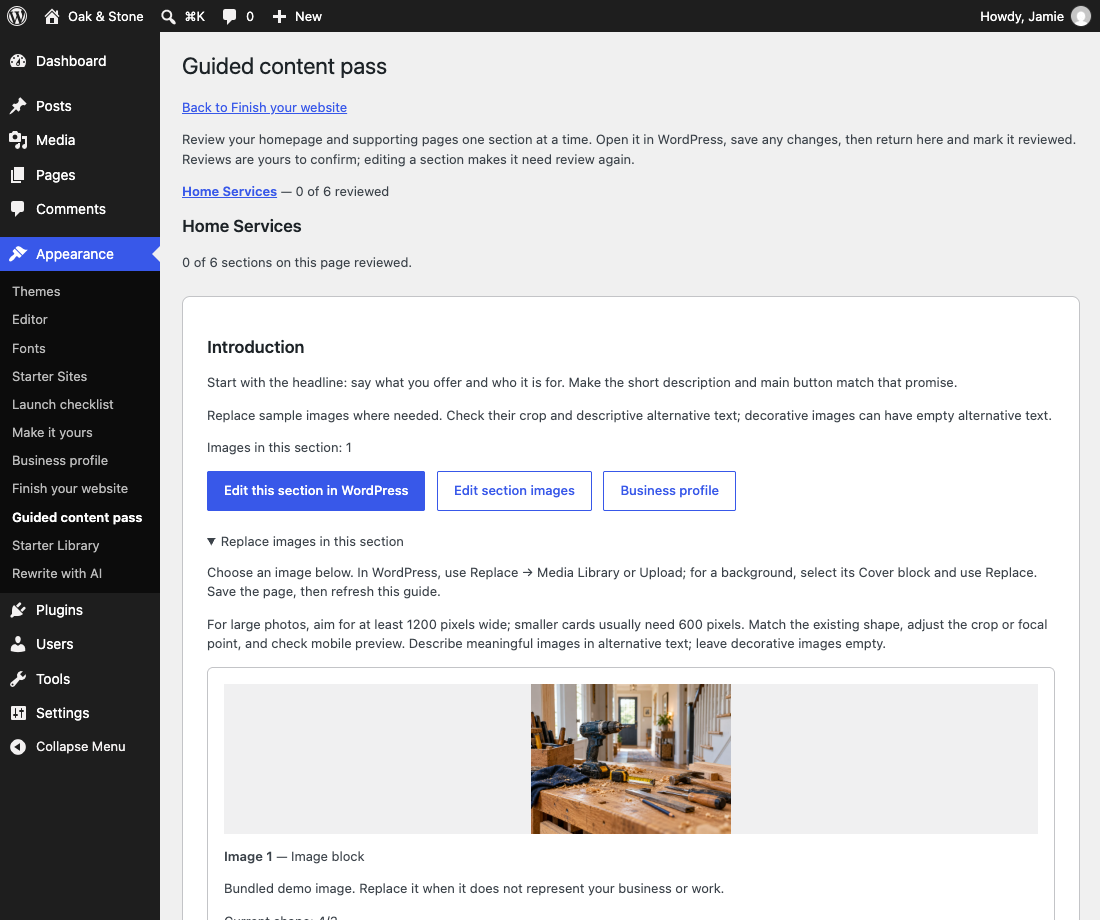
Go to Finish your website → Start guided content pass. Choose a page and work through its sections. Replace image … in WordPress opens the matching Image or Cover block; use native Replace → Upload or Media Library.
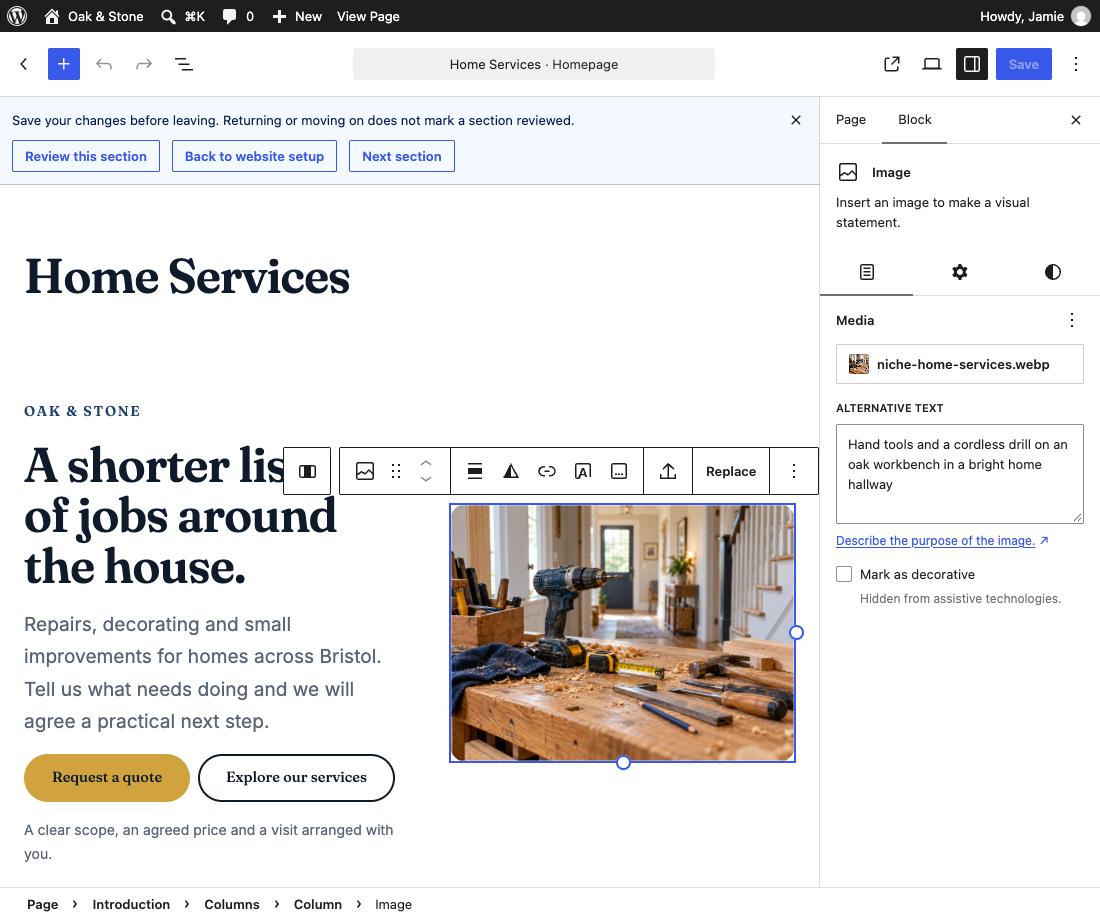
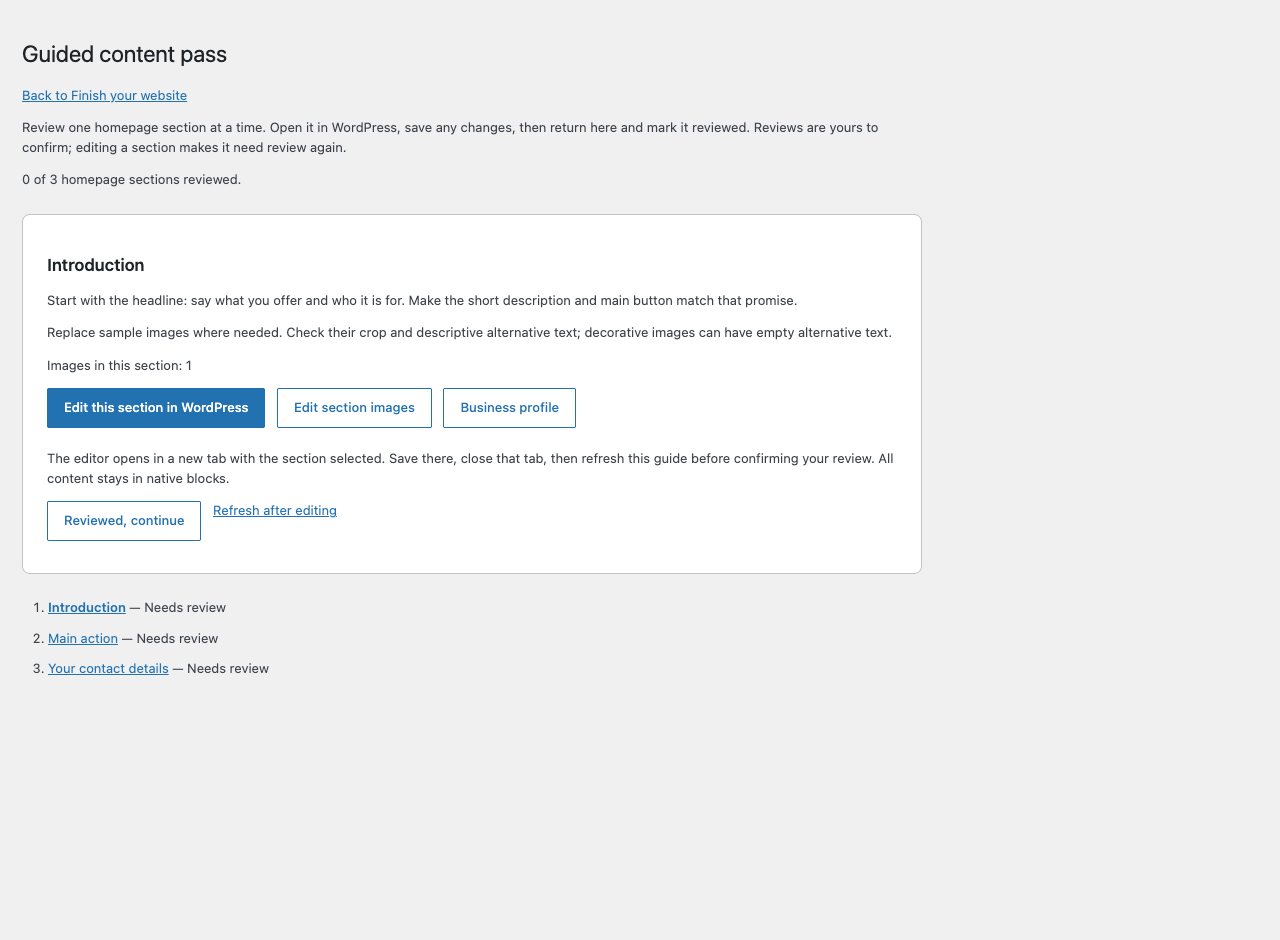
Save your edits in WordPress, then use Review this section to return. Choose Refresh after editing and Reviewed, continue in the guide when satisfied. Returning alone does not mark anything reviewed.
Page progress, later edits and content-only layouts
Choose Start guided content pass under Appearance → Finish your website. The guide follows the sections actually saved on your homepage and imported supporting pages, including pages added later. Choose a page from the list to see its progress. The Blog posts index is managed through Posts rather than this page-content pass.
Edit this section in WordPress opens a new editor tab with the section selected. Under Replace images in this section, each photo has its own Replace image … in WordPress link. It selects that exact Image or Cover block. Use WordPress's Replace → Media Library or Upload, then check the crop or focal point and mobile preview. The guide shows current alternative text and saved image shape, labels bundled demo images, and gives image-size guidance. Describe meaningful photos; decorative images may have empty alt text.
The native editor notice offers Review this section, Back to website setup and, where available, Next section. Save edits first: unsaved changes or a save in progress keep you in the editor. Moving on does not mark anything reviewed. See the editor return shortcuts.
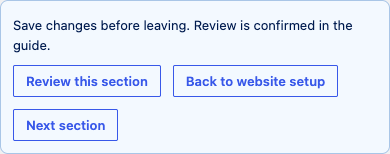
Save edits in WordPress, use a return shortcut or return to the guide and choose Refresh after editing, then choose Reviewed, continue. Progress is remembered per page and section; editing one section resets only its review. Stale review forms ask you to refresh. Existing homepage progress and older imports remain supported without rewriting content. Finishing a page moves to the next unfinished starter page. Finish your website also resumes there.
After reviewing your pages, review the header and footer and test contact delivery and mobile behavior in the launch checklist. Completing the guided pass does not automatically approve those broader launch checks. See the guided content pass.
Starter pages open in content-only mode: headings, paragraphs, images and buttons are editable, while the groups and columns that hold the layout together are locked. This stops a layout coming apart by accident. To edit the structure of a section, select it and choose Unlock from the block toolbar.
Swap a section layout
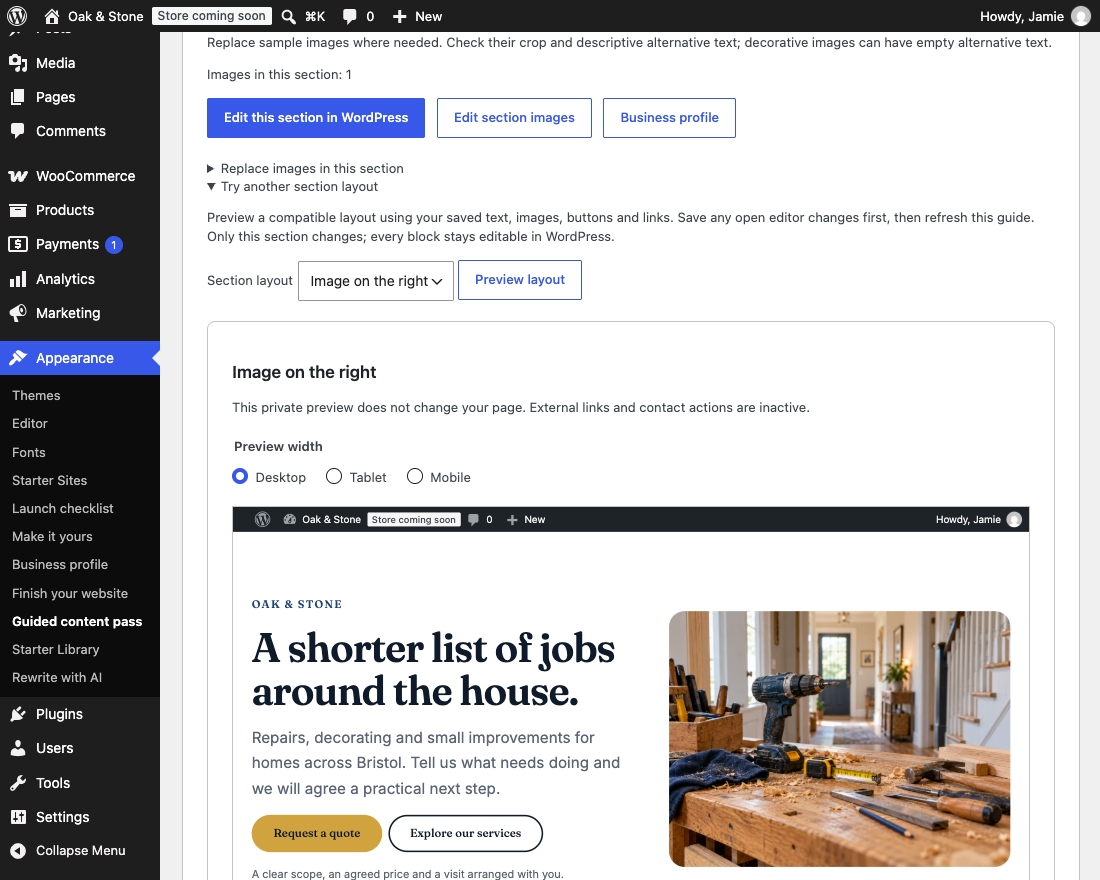
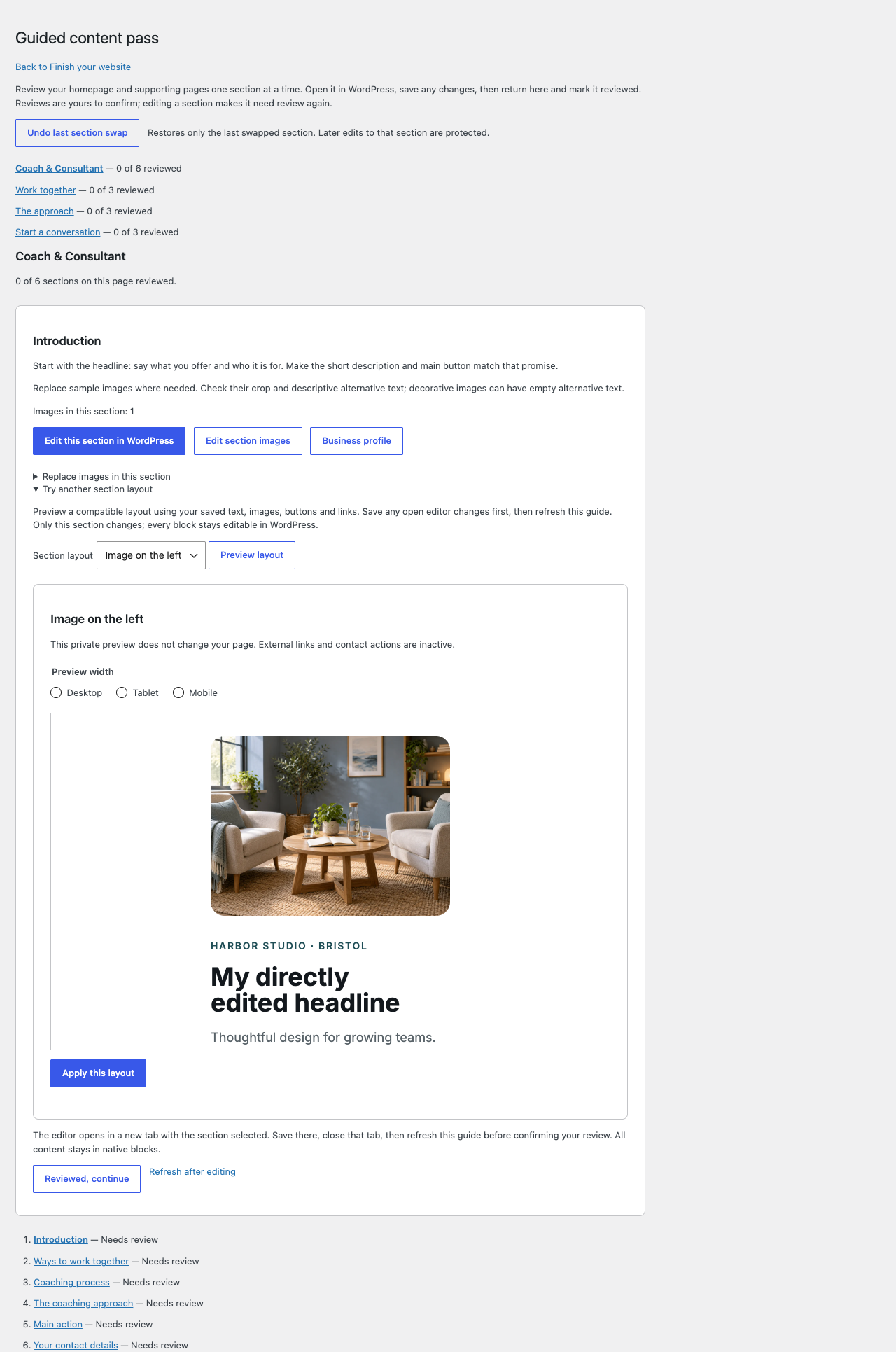
In the guided pass, expand Try another section layout. Choose a compatible layout and Preview layout to see your saved content in it. Save open editor changes before previewing. Apply this layout changes that section only.
Undo and compatibility rules
In the guided pass, expand Try another section layout on a compatible hero, services grid or call to action. Save any open editor changes and refresh the guide first. Select a layout and choose Preview layout. Desktop, tablet and mobile previews use the page's saved text, images, buttons and links; previewing does not change the site or submit contact actions.
Choose Apply this layout to replace only that section's layout. All its content and anchors stay in native WordPress blocks. Undo last section swap restores the latest swapped section and keeps changes elsewhere on the page. Undo refuses to overwrite newer edits within that section. When revisions are enabled, WordPress also keeps earlier page versions. Only the latest swap has this Undo.
Options appear for compatible split heroes, native service grids and simple action sections. Custom or unsupported structures remain editable through Edit this section in WordPress. No plugin is required. See the section-swap preview.
Headers, footers and styles
Open Appearance → Make it yours. Its shortcuts open native WordPress branding, Styles and Navigation controls. Browse the header and footer cards and choose their Preview buttons before applying a preset.
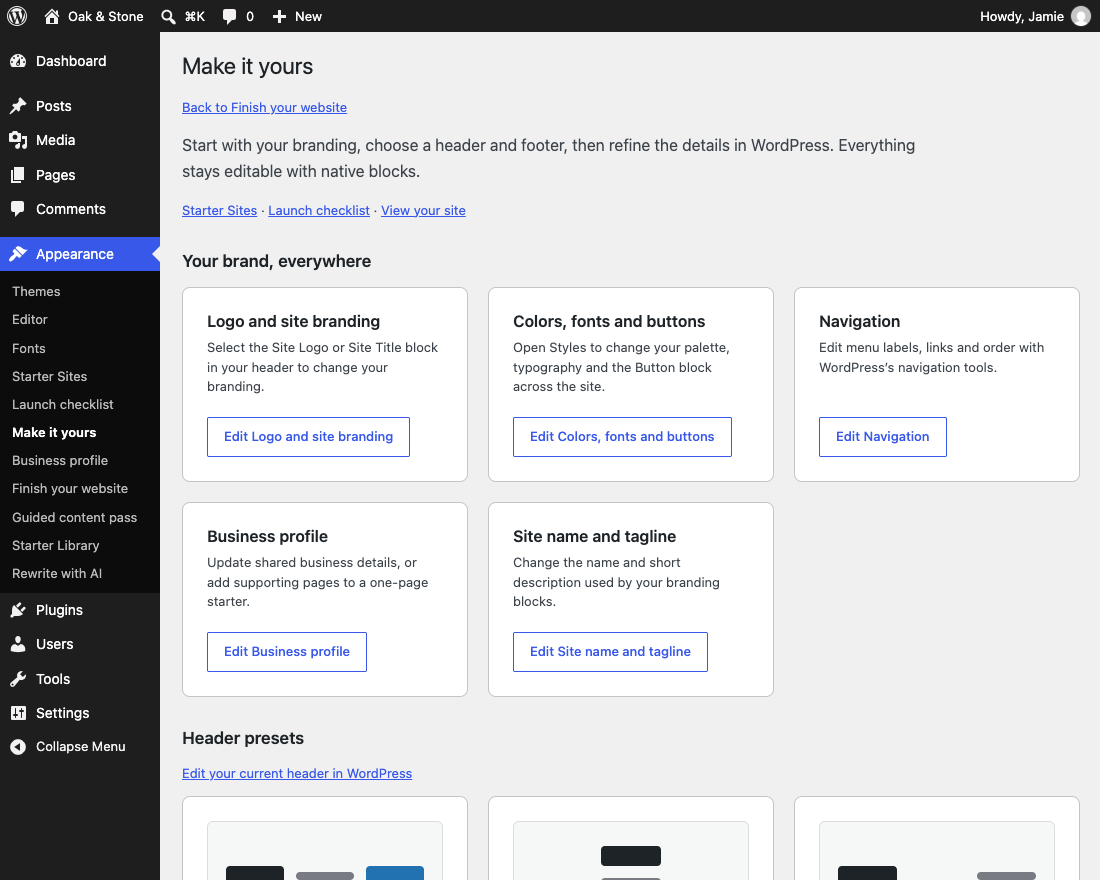
For colors and type, use Appearance → Editor → Styles. Start with a curated look, or adjust colors and typography separately. See the illustrated design guide for the individual controls.
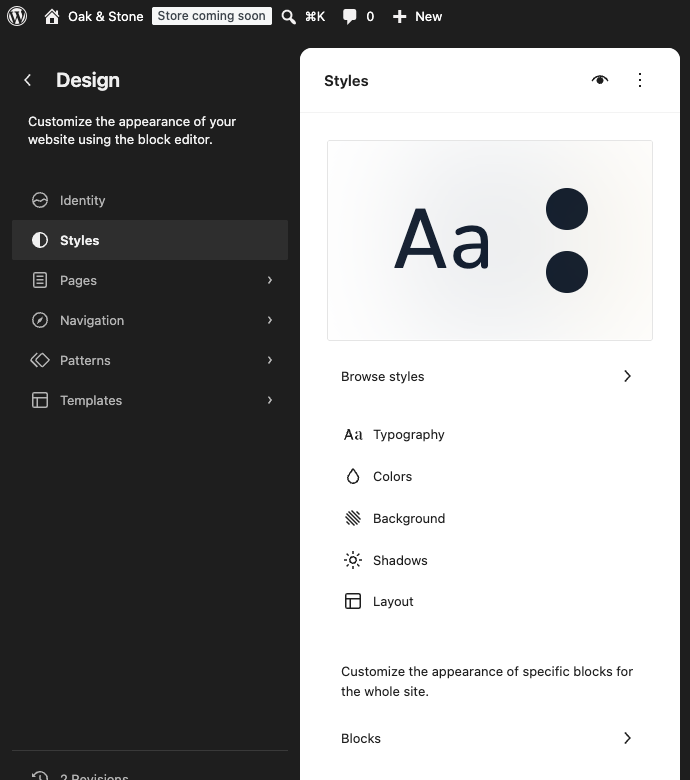
What presets preserve and how Undo works
Open Appearance → Make it yours after setup, or use its button on the completion screen. Branding shortcuts open WordPress’s Site Editor, Styles, Navigation or General settings; there is no separate page builder. See the Make it yours workspace.
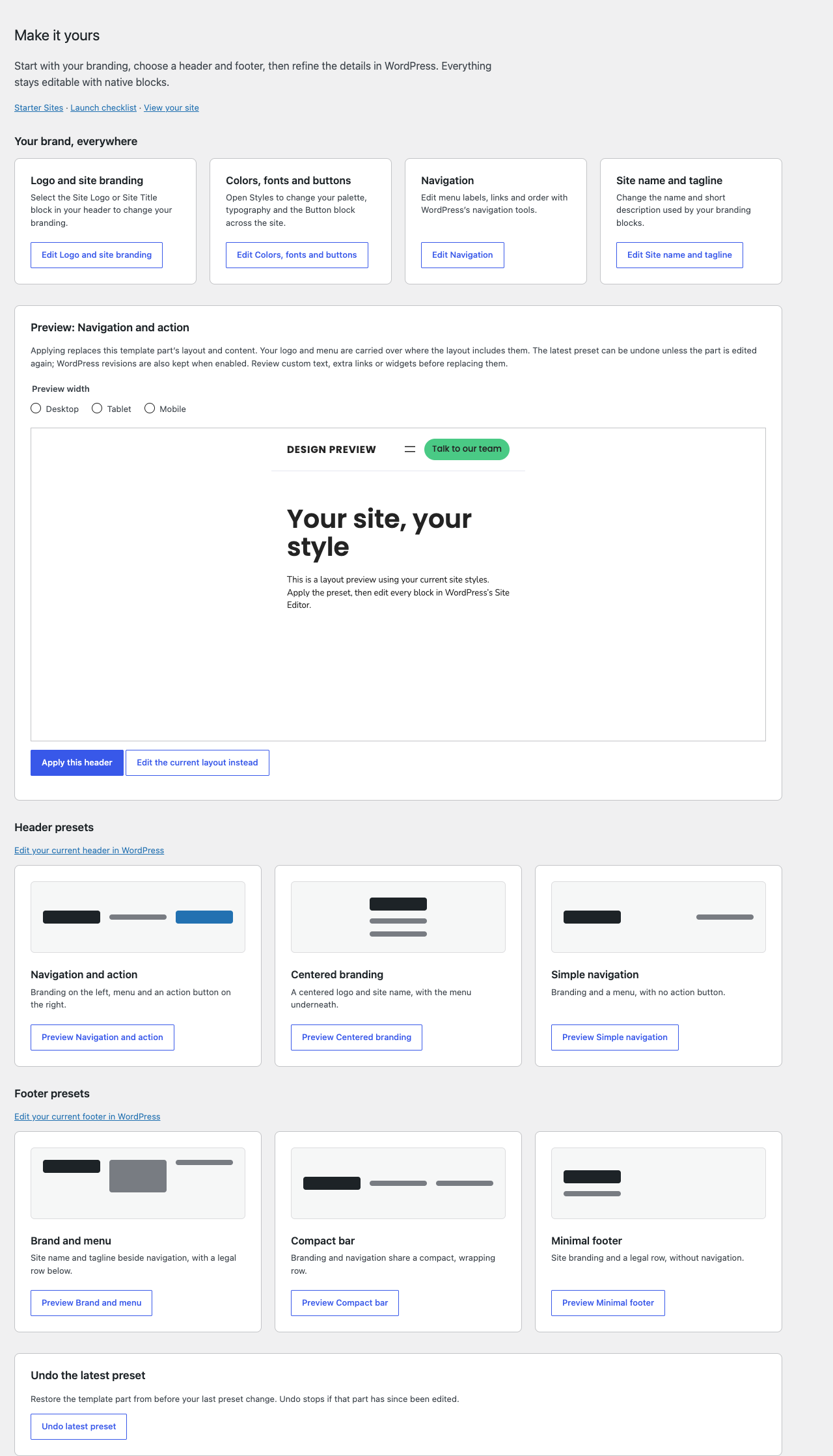
Choose Preview on a header or footer card. Switch between desktop, tablet and mobile widths, then choose Apply this header or Apply this footer. Only that template part changes. Existing branding and the selected menu are carried over where the new layout includes them; a header action is retained when both layouts include one. Custom text, additional menus and widgets can be replaced, so review the preview first. Footer policy links use your published privacy-policy page and are omitted when no policy is available.
Use Edit the current layout instead to refine your existing blocks in WordPress. Colors, fonts and buttons are edited under Styles; logo sizing is edited on the Site Logo block. Presets remain fully editable native blocks.
Undo latest preset restores the previous part while it remains unchanged. It refuses to overwrite later Site Editor changes. Applying the same preset again preserves the useful Undo; applying a different preset replaces that recovery point. WordPress revisions are also retained when enabled. Pages, navigation records, global styles and Reading settings are not rewritten.
Choose a contact method
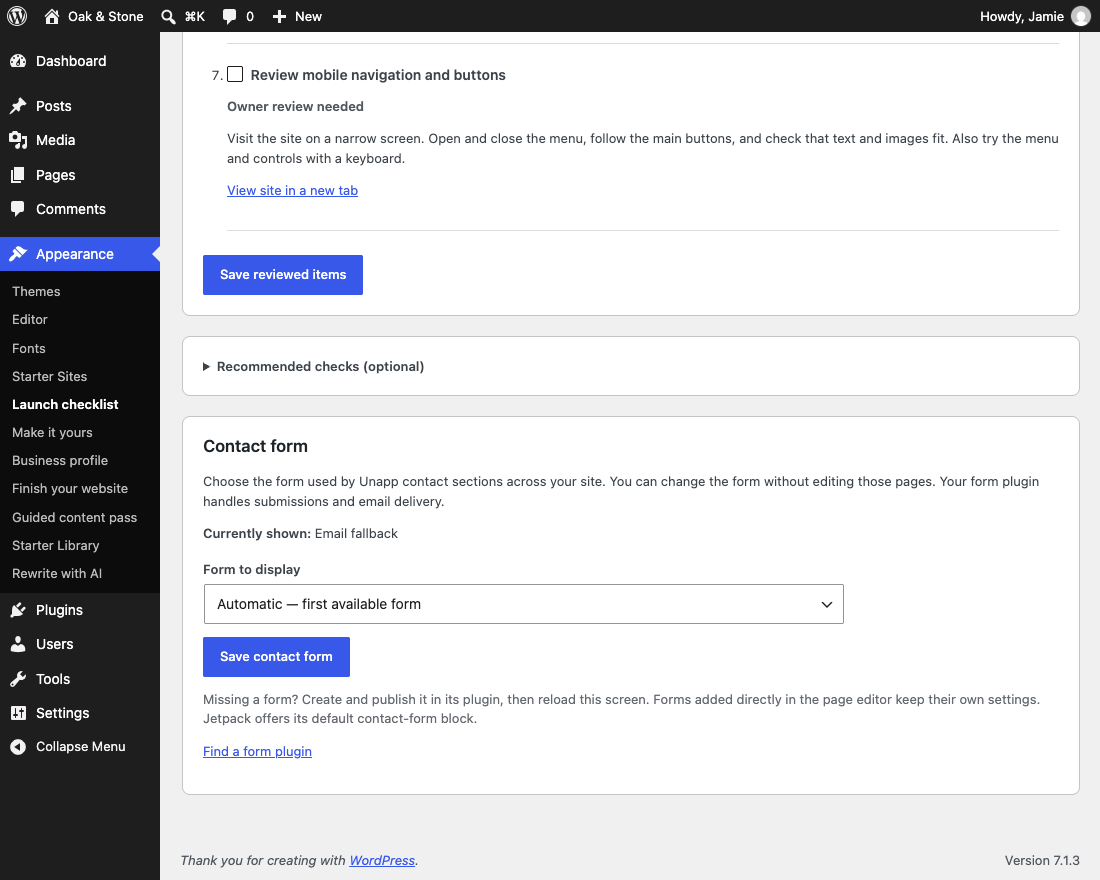
Open Appearance → Launch checklist → Contact form. Choose Automatic, Email only, or a published form from a supported active plugin, then Save contact form. Create a form in its plugin first if it is not listed.
Supported plugins, missing forms and caching
Open Appearance → Launch checklist → Contact form to choose what Unapp's contact sections display:
- Automatic keeps the first available form from a supported active plugin.
- Email only keeps the email links saved in the contact sections.
- A specific form lists published forms by plugin, title and ID, so you can choose a booking form rather than the first form in the plugin.
Supported plugins include WPForms, Contact Form 7, Gravity Forms, Fluent Forms, Forminator, Ninja Forms, Kali Forms, Everest Forms, HappyForms and Jetpack. Create and publish a form in its plugin, then reload the selector. Jetpack offers its default contact-form block. No plugin is installed automatically.
Saving applies to existing dynamic Unapp contact sections without rewriting pages or replacing form blocks added directly in the editor. If you cache pages, clear the page cache after changing the selection. If the selected form is deleted or its plugin is disabled, the saved email fallback appears and the checklist flags the selection. Another form is not silently chosen. Form plugins handle submissions and email delivery; Unapp does not send or store messages.
Review before sharing
Return to Appearance → Finish your website, check the main visitor action, then open the launch checklist. Replace remaining examples, confirm business claims, test contact delivery and try the menu and buttons on your phone. The starter is published after building; the checklist does not publish anything for you.
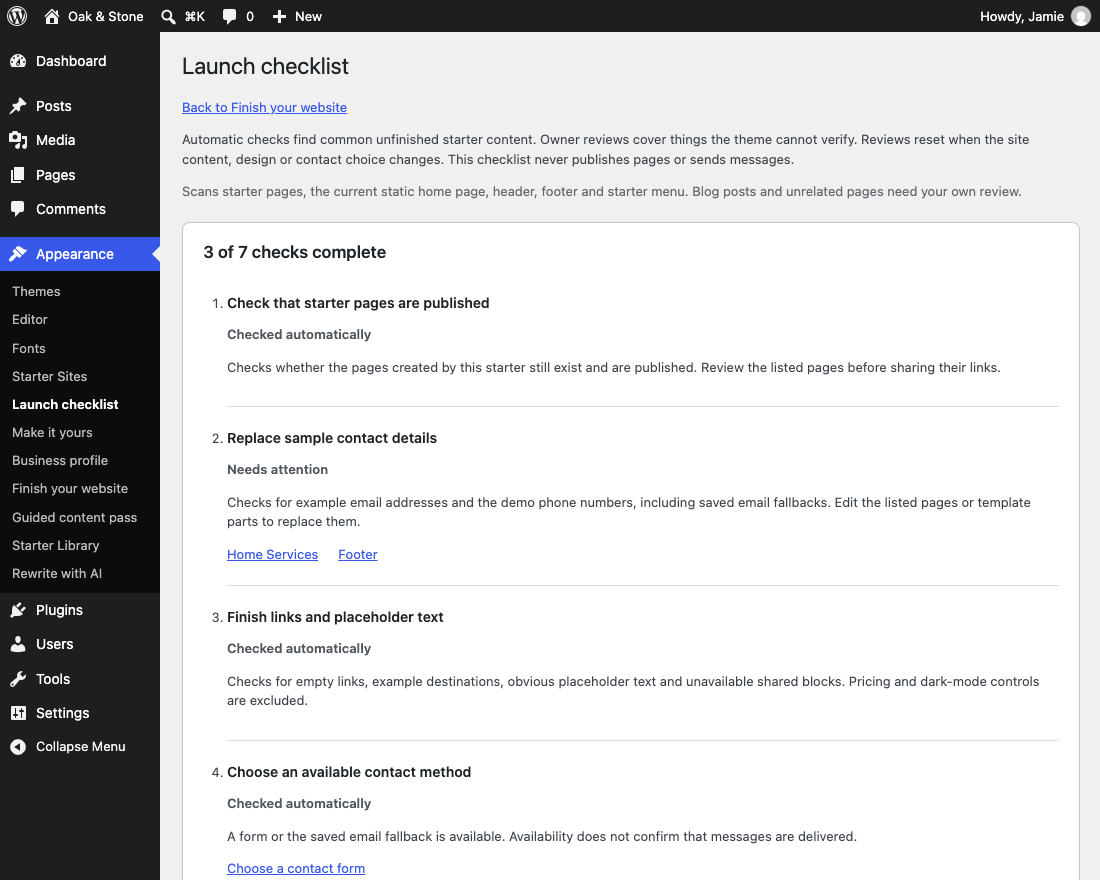
Expand Recommended checks (optional) for the site icon, navigation destinations, search visibility and image descriptions. These suggestions do not block completion or change settings automatically.
What launch checks cover
The setup completion screen and Starter Sites link to Appearance → Launch checklist. It also works for the Home page created on activation.
Automatic checks identify unpublished/missing starter pages, sample contact details, example/empty links, obvious placeholder wording, unavailable shared blocks and an unavailable selected form. Findings link to the affected pages or template parts. Scans cover starter pages, the current static home page, header, footer and starter menu; blog posts and unrelated pages need your own review.
Three owner reviews cover business details and claims, contact delivery, and mobile navigation/buttons. Passages that still match starter copy are offered as review hints, not treated as proof that the wording is wrong. Test your actual contact form or email/phone links, then tick the reviewed items and save.
Reviews reset when relevant page content, design, branding or the selected contact method changes. A stale checklist cannot certify newer edits, and manual checkboxes cannot override a failed automatic check. The checklist does not publish anything or send a test message.
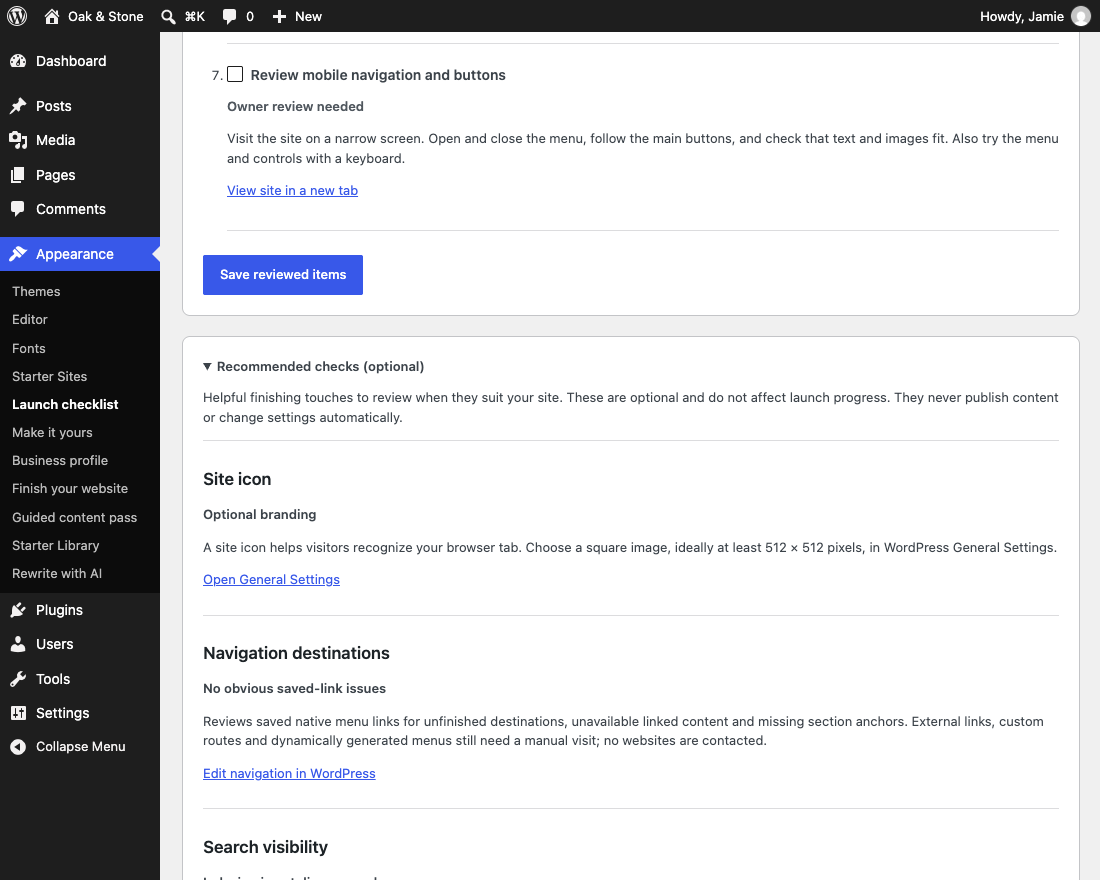
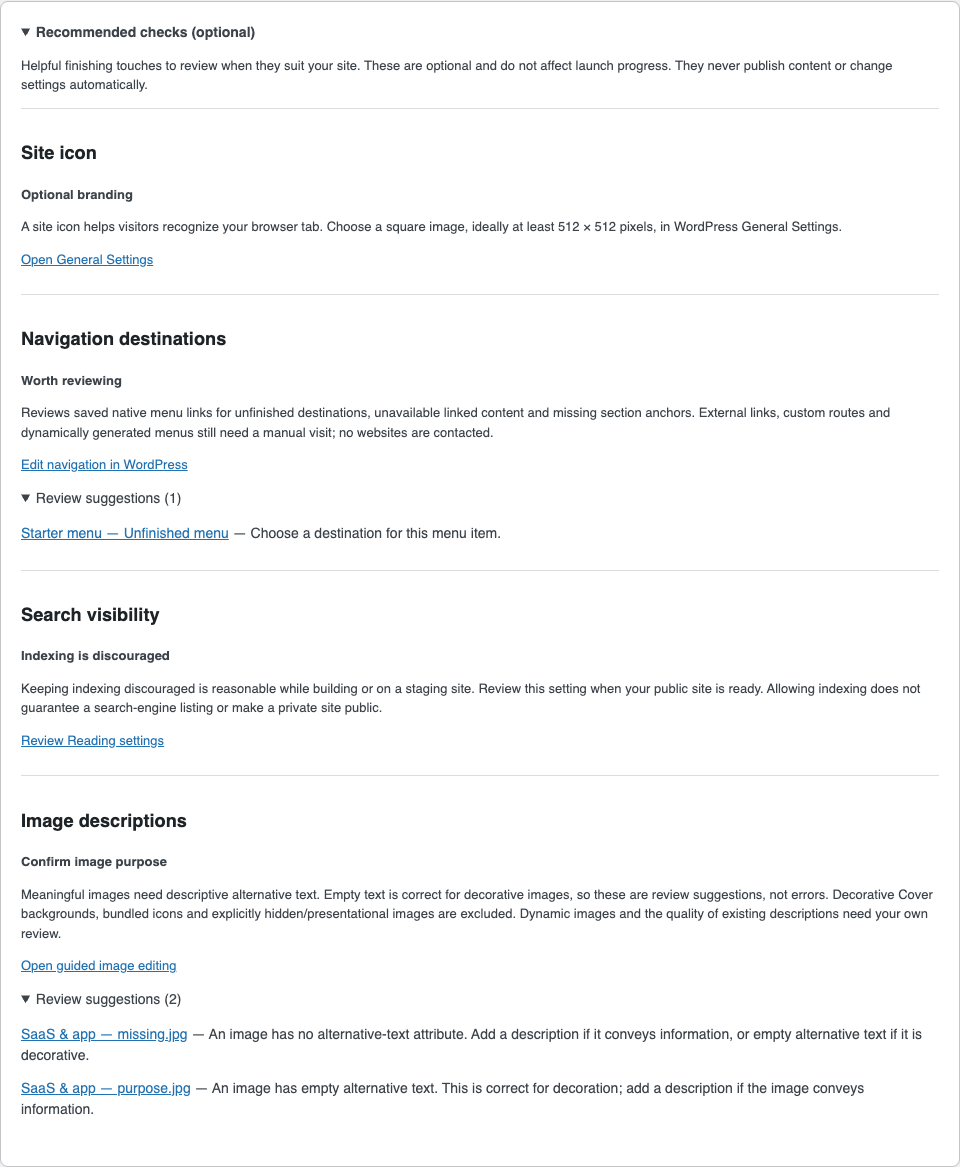
Under Appearance → Launch checklist, expand Recommended checks (optional) when you want finishing suggestions. The panel has no required checkboxes and never changes your launch score, publishes content or updates settings.
- Site icon: check whether an image is configured and open native General Settings to choose one. A square image of at least 512 × 512 pixels is ideal.
- Navigation destinations: review empty/example destinations, missing or non-public linked content and section anchors absent from saved content. Findings open the relevant native editor. External links, custom routes and dynamic menus still need a manual visit; the theme never fetches link URLs.
- Search visibility: open native Reading settings when ready. Discouraging indexing is fine during setup or on staging; allowing it does not guarantee indexing or change a site's privacy controls.
- Image descriptions: review missing alternative text in saved image markup. Empty text can correctly describe decorative images and is a suggestion to confirm purpose, not an error. Decorative Cover backgrounds, bundled icons and explicitly hidden/presentational images are excluded. Edit meaningful image descriptions in the page or shared block; the guided pass also offers image editing links. Dynamic images and description quality need your own review.
These checks read the starter pages, current static homepage and shared design. They do not crawl unrelated pages or blog posts. Settings links appear only for users who can change those settings. Everything uses free native WordPress tools. See the optional launch checks.
Add pages and recover changes
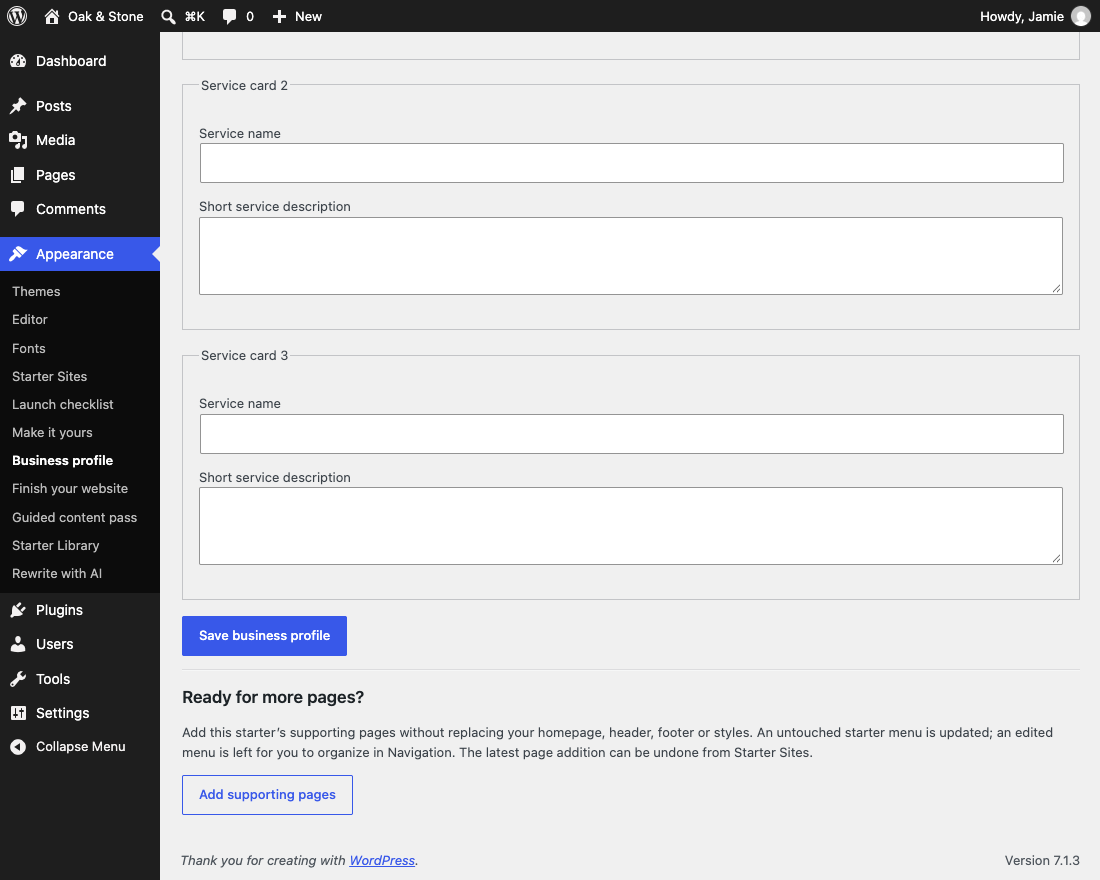
A one-page site can grow later: open Appearance → Business profile → Add supporting pages. It adds missing starter pages without rebuilding the homepage. Custom menus stay as you edited them.
Undo this setup in Starter Sites restores the previous setup and moves newly created pages to Trash. Preset changes and section swaps have their own Undo controls. Undo stops when later edits need protecting; native revisions may also help when enabled.
One-page expansion and main-action behavior
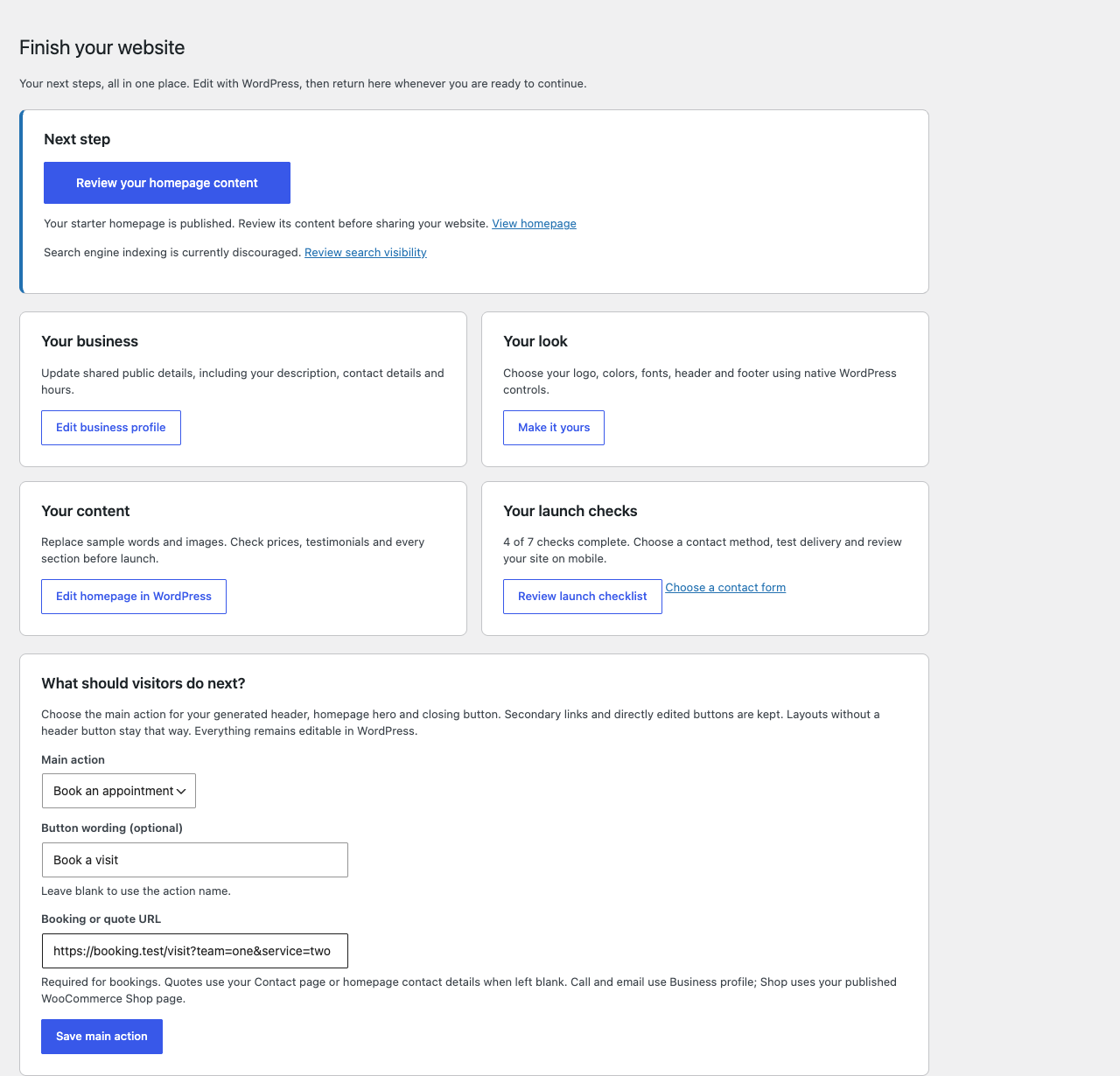
After building, open Appearance → Finish your website. This is your return point for business details, branding, homepage editing, contact-form selection and launch checks. Its next-step button reflects your current setup; you can leave and come back later. The screen states whether the starter homepage is published and flags discouraged search indexing or another selected front page. It does not change publication or visibility settings.
Under What should visitors do next?, choose Call us, Email us, Book an appointment, Get a quote, Shop, or Keep starter buttons. You may change the button wording. Bookings need a full URL; quotes can use your published Contact page or homepage contact details. Call and email use Business profile. Shop requires a published WooCommerce Shop page.
Saving updates the generated header, homepage hero and closing action buttons. Secondary links, supporting pages and directly edited buttons stay as they are; headers without an action button remain unchanged. Later profile edits update selected call/email actions. Choose another action before clearing the contact detail it uses. Keep starter buttons restores the original action wording and destinations on unchanged shared buttons. Native revisions are retained when enabled. See the finishing workspace.
One-page setup creates the complete starter homepage with section links in its menu, without creating supporting pages or a new Blog page. Existing pages stay in place. Shop still needs WooCommerce and its store pages. The table below lists the supporting pages available with Full website, which also creates a Blog page.
Under Appearance → Business profile, update your public name, description, email, phone, location, services and hours together. Fields generated by the wizard update on the current starter's homepage, contact page and footer where included. Fields edited directly in WordPress are preserved, as are older pages and unlinked demo copy. Review the remaining starter text before launch.
Choose Add supporting pages on that screen when you need more room. It adds the starter's missing pages without rebuilding your homepage or design. An untouched starter menu expands automatically; custom menus stay as you edited them. Appearance → Starter Sites → Undo page addition restores the previous page list and menu while the new content remains unchanged.
All nineteen starters: looks and supporting pages
The nineteen designs:
| Starter | Look | Pages it creates |
|---|---|---|
| SaaS & app | Indigo · Poppins & Nunito | Home, Features, Pricing, About, Contact |
| Portfolio | Mono · Inter | Home, Work, About, Contact |
| Church | Stone · Fraunces & Inter | Home, Plan your visit, About us, Give, Contact |
| Blog & magazine | Sunset · Fraunces & Inter | Home, About, Contact |
| Fitness studio | Ember · Manrope | Home, Timetable, Memberships, Contact |
| Finance & advisory | Navy · Fraunces & Inter | Home, Services, About, Contact |
| Restaurant | Harvest · Fraunces & Inter | Home, Menu, The kitchen, Book a table |
| Agency | Slate · Space Grotesk & Inter | Home, Work, Studio, Start a project |
| Shop | Emerald · Manrope | Home, How it is made, Delivery and returns, New in |
| Property | Graphite · Fraunces & Inter | Home, For sale, Our fees, Book a valuation |
| Practice | Slate · Inter | Home, Treatments, The team, Find us |
| Courses | Violet · Poppins & Nunito | Home, Courses, Tutors, Contact |
| Conference | Midnight · Space Grotesk & Inter | Home, Programme, Tickets, Venue and access |
| Home Services | Navy · Fraunces & Inter | Home, Services, Where we work, Request a quote |
| Cleaning | Emerald · Inter | Home, Cleaning services, Areas and visits, Get a quote |
| Salon & Barber | Harvest · Fraunces & Inter | Home, Services, Visit the studio, Appointments |
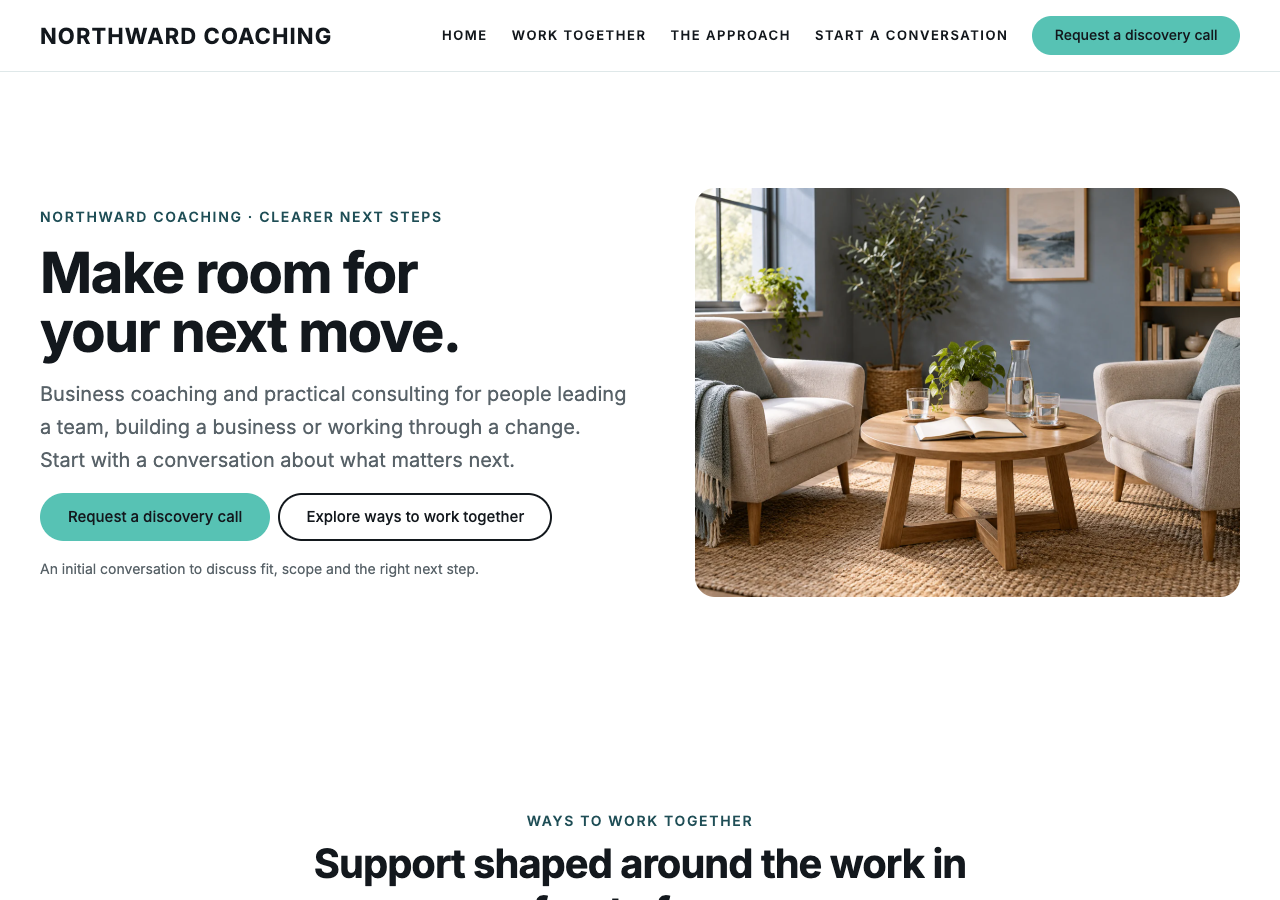
| Coach & Consultant | Slate · Inter | Home, Work together, The approach, Start a conversation |
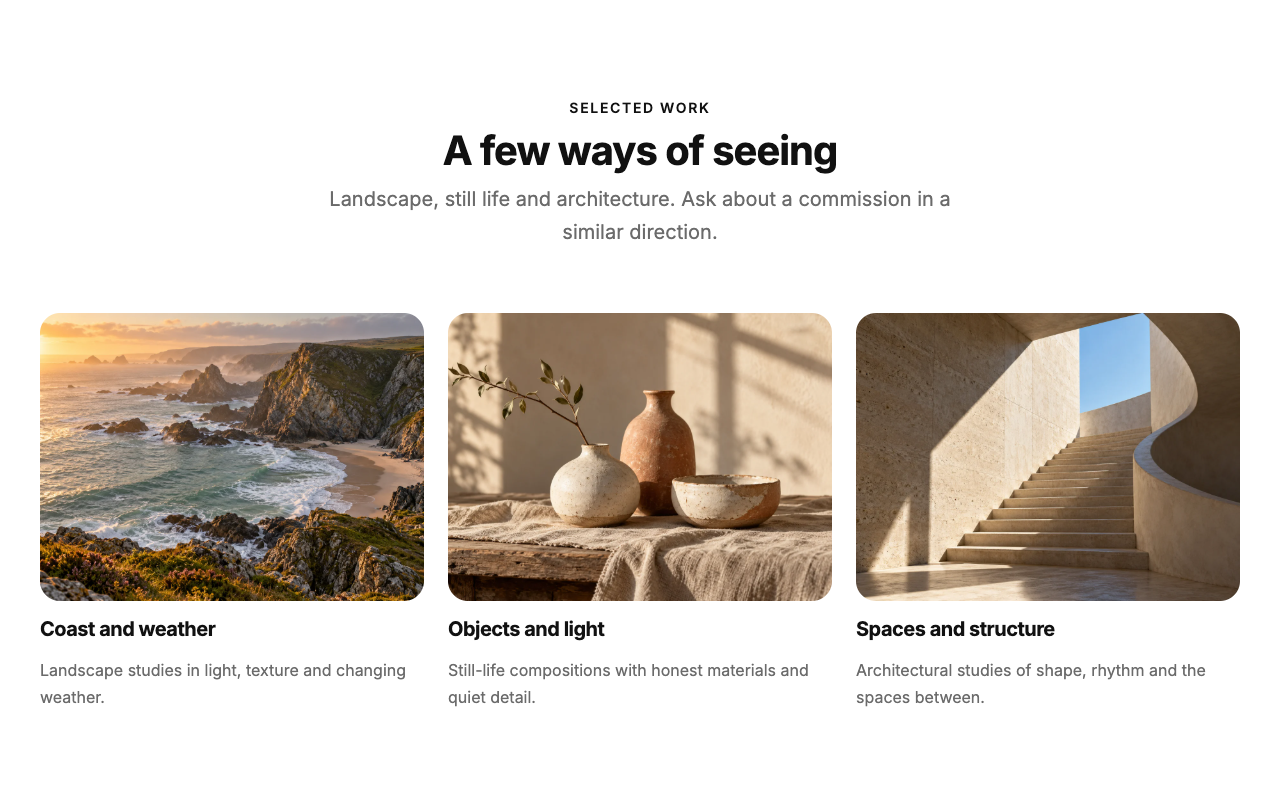
| Photographer | Mono · Inter | Home, Selected work, The approach, Enquiries |
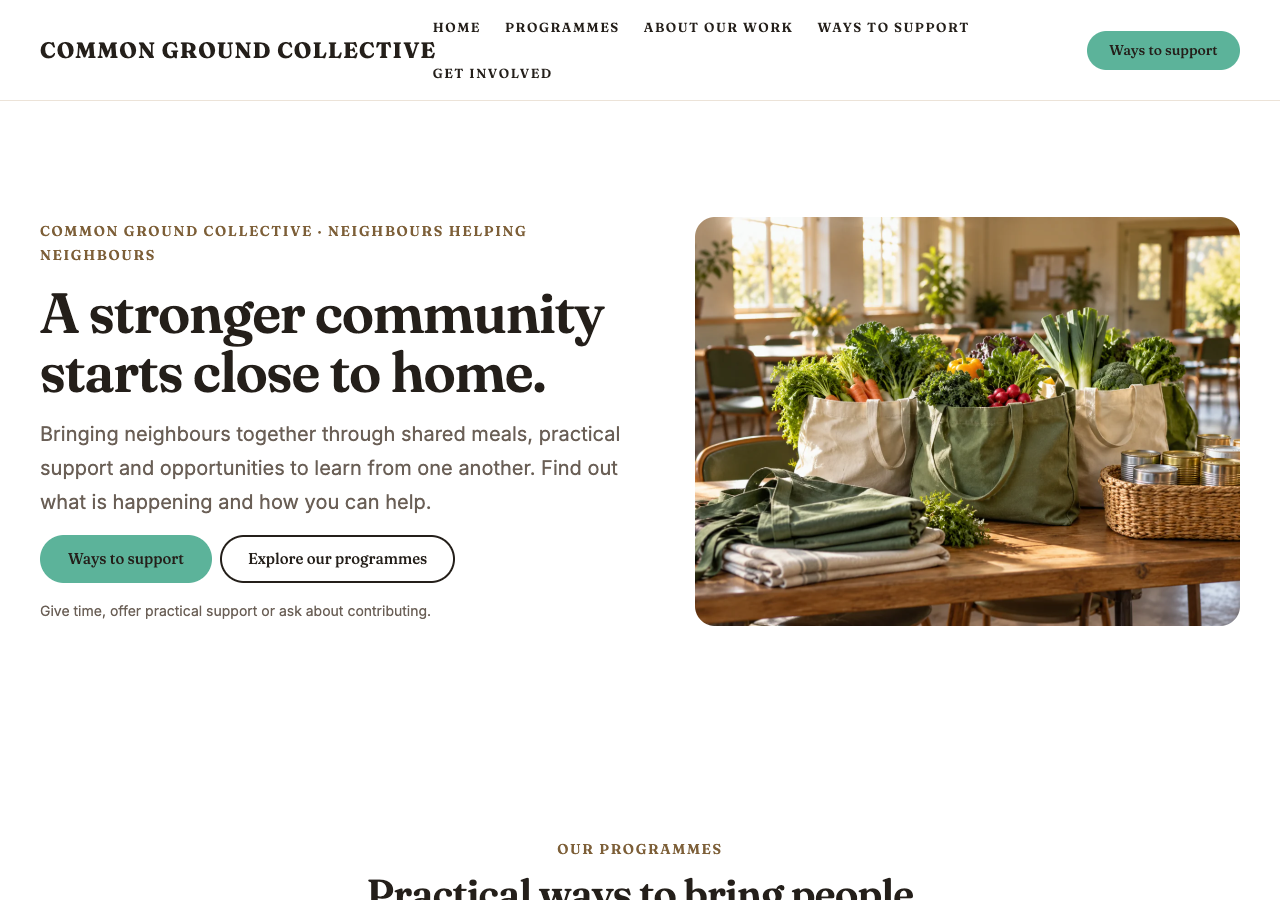
| Nonprofit | Stone · Fraunces & Inter | Home, Programmes, About our work, Ways to support, Get involved |
Coach & Consultant starts with a discovery-call request and agreed scope, format and fees. Photographer includes three distinct illustrative portfolio images; replace them with your own work using native Image blocks. Nonprofit offers programme, volunteering and giving enquiries without processing payments. When you have a published giving destination, edit the appropriate Button link in WordPress. Review the programmes and organisation details before launch; the starter does not supply verified impact figures or registration claims.
See the photographer gallery, coaching starter and nonprofit starter.
Installation, compatibility and advanced style notes
Upload the theme zip under Appearance → Themes → Add New → Upload Theme, then activate it. On a brand-new install Unapp creates a Home page and a Blog page, assigns them under Settings → Reading, and leaves you on a finished landing page rather than an empty blog roll. On a site that already has content — a static front page or a blog of latest posts — nothing is changed: a notice offers the same setup with one click instead.
Requires WordPress 6.6 or later. Everything works on 6.6; WordPress 7.0 adds the Accordion, Breadcrumbs, Query Total and Terms Query blocks, which the theme uses where available and quietly omits where not.
Appearance → Editor → Styles holds three separate choices:
- Colors — twelve palettes, each contrast-checked for body text and buttons.
- Typography — five typeface pairings. Every pattern follows automatically.
- Browse styles — twelve curated looks that pair a palette with a typeface.
Colours and typography are independent, so the twelve palettes and five type presets give sixty combinations.
The Dark mode toggle pattern adds a button that lets a visitor read the site light or dark and remembers the choice. It keeps your palette rather than replacing it: the neutrals swap to a dark set and your own primary, secondary and accent are lightened just enough to stay legible, so a green site stays green.
Nothing loads on pages without the toggle — no stylesheet, no script.
Measured on a local WordPress 7.0 install with WooCommerce, Jetpack and a form plugin active, cold cache, at 1280px:
| Page | Requests | Transferred | First contentful paint |
|---|---|---|---|
| Front page | 43 | 235 KB | 224 ms |
| Blog | 37 | 501 KB | 152 ms |
Most of the script weight is the active plugins rather than the theme; the theme itself ships no framework, no jQuery and no icon font, and loads its per-block stylesheets only on pages that use those blocks.
These localhost measurements are historical development results, not a production Core Web Vitals benchmark. Measure mobile LCP, INP and CLS on the actual hosting environment before making performance claims.
Import recovery and setup Undo
Applying a starter writes its palette and typeface into Global Styles, builds the pages, creates a menu, sets the front page, points the header button at the starter's main page with its own wording, and swaps in that starter's footer.
No page, post or image is ever deleted. Applying a second starter adds new pages beside the old ones and repoints the front page; your previous pages stay in Pages. What a starter does replace — the Global Styles, the header and the footer — is saved as a revision first, so Styles → Revisions and the template part's revisions bring the previous version back. Starters keep their own navigation menu and never change menus you made yourself.
Public email and phone fields replace the starter's sample contact details on its new pages and footer, including email and telephone links. Blank fields keep the examples. Review sample addresses, hours, prices and testimonials before publishing.
Setup checks every required section before writing. If a save fails, it attempts to restore the previous design and Reading settings and moves newly created pages to the Trash. The error screen says if recovery needs attention. Repeated submissions of the same completed setup reuse its pages; choosing “Set up again” deliberately creates a new set.
Undo this setup on the finished screen or Starter Sites restores the previous design, menu, branding and front-page settings. New pages move to the Trash (or become drafts if Trash is disabled). Undo checks for later page, design and setting changes and stops rather than overwriting edits. Only the latest setup can be undone; older content remains available through Pages and revisions.
The Shop starter needs WooCommerce, and cannot be applied until it is active.